Share stock with a partner
Let a shop you already know browse items that have a partner price, then collect through a normal purchase order.
Who uses this
You use this as the owner when you share stock with another OsoAhia shop. Cashiers do not send invitations.
What you need first
- Owner sign-in
- At least one active stock product with a partner price
- The other shop’s organisation code
Steps
1. Set a partner price
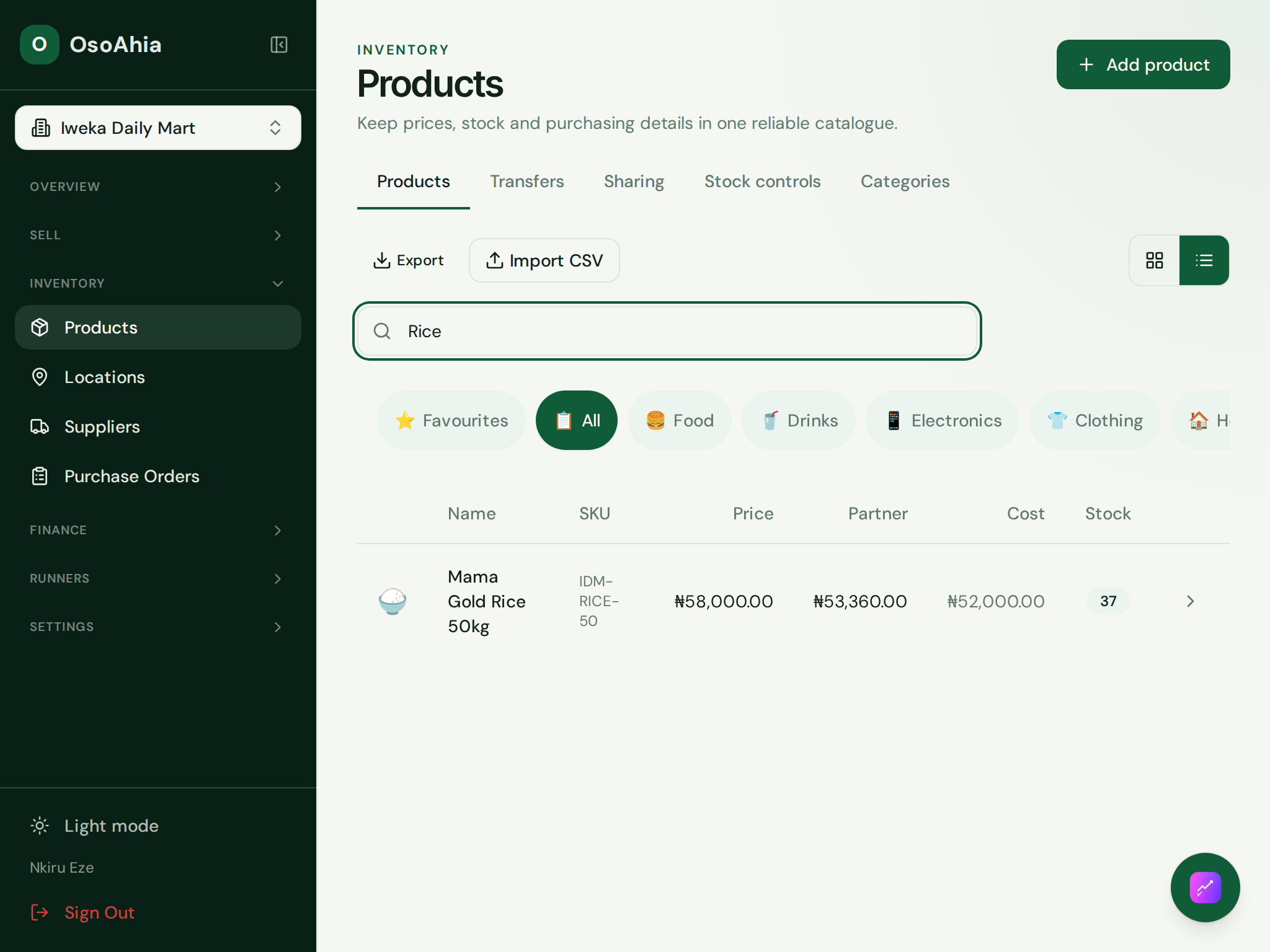
Open Inventory. Add or edit an item and fill Wholesale / partner price. Retail stays on the till. The partner price is what a connected shop can order.
2. Open Sharing
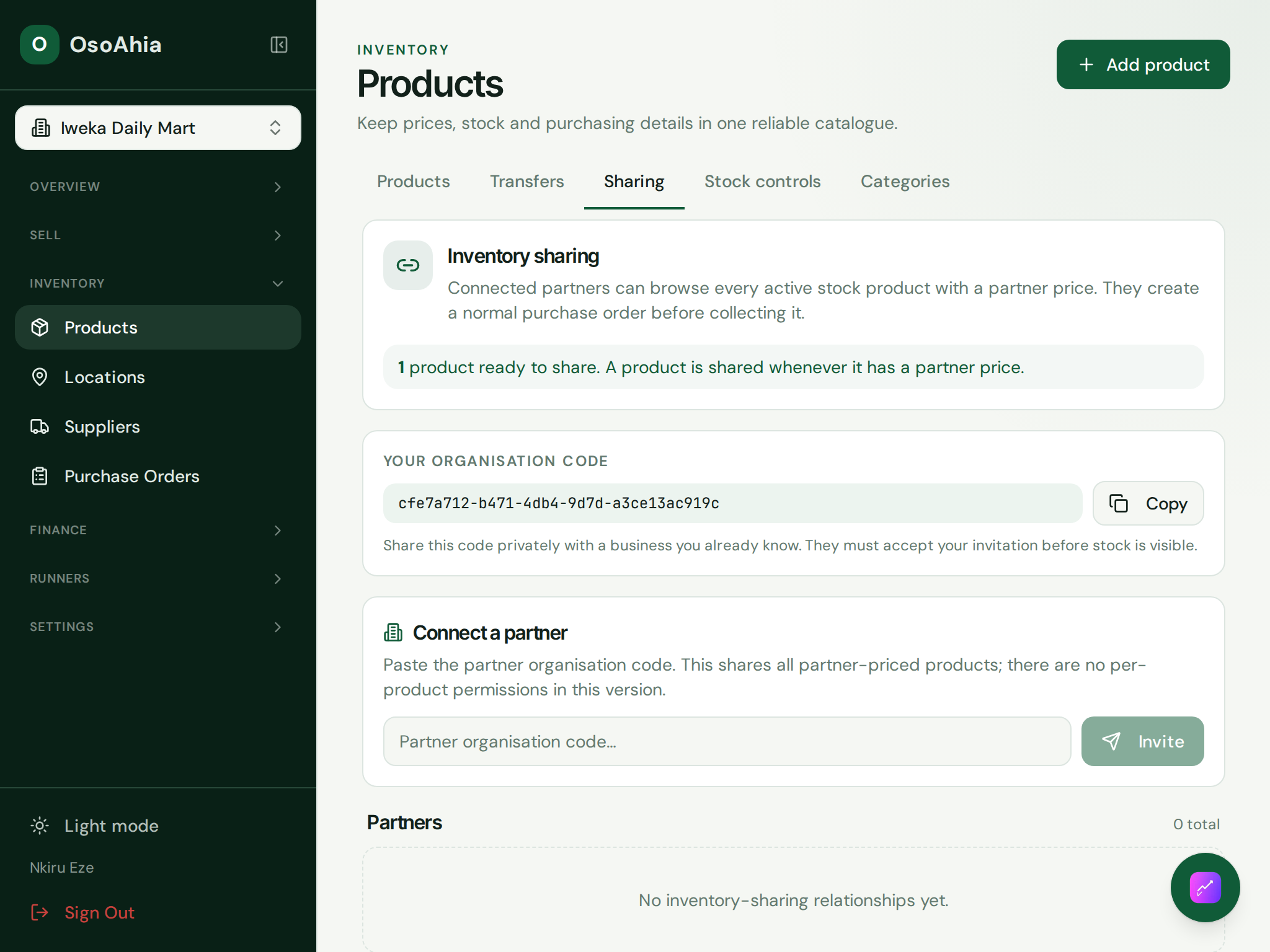
Open the Sharing tab. Copy your organisation code if a partner will invite you. A product is ready to share only after it has a partner price.
3. Invite a partner
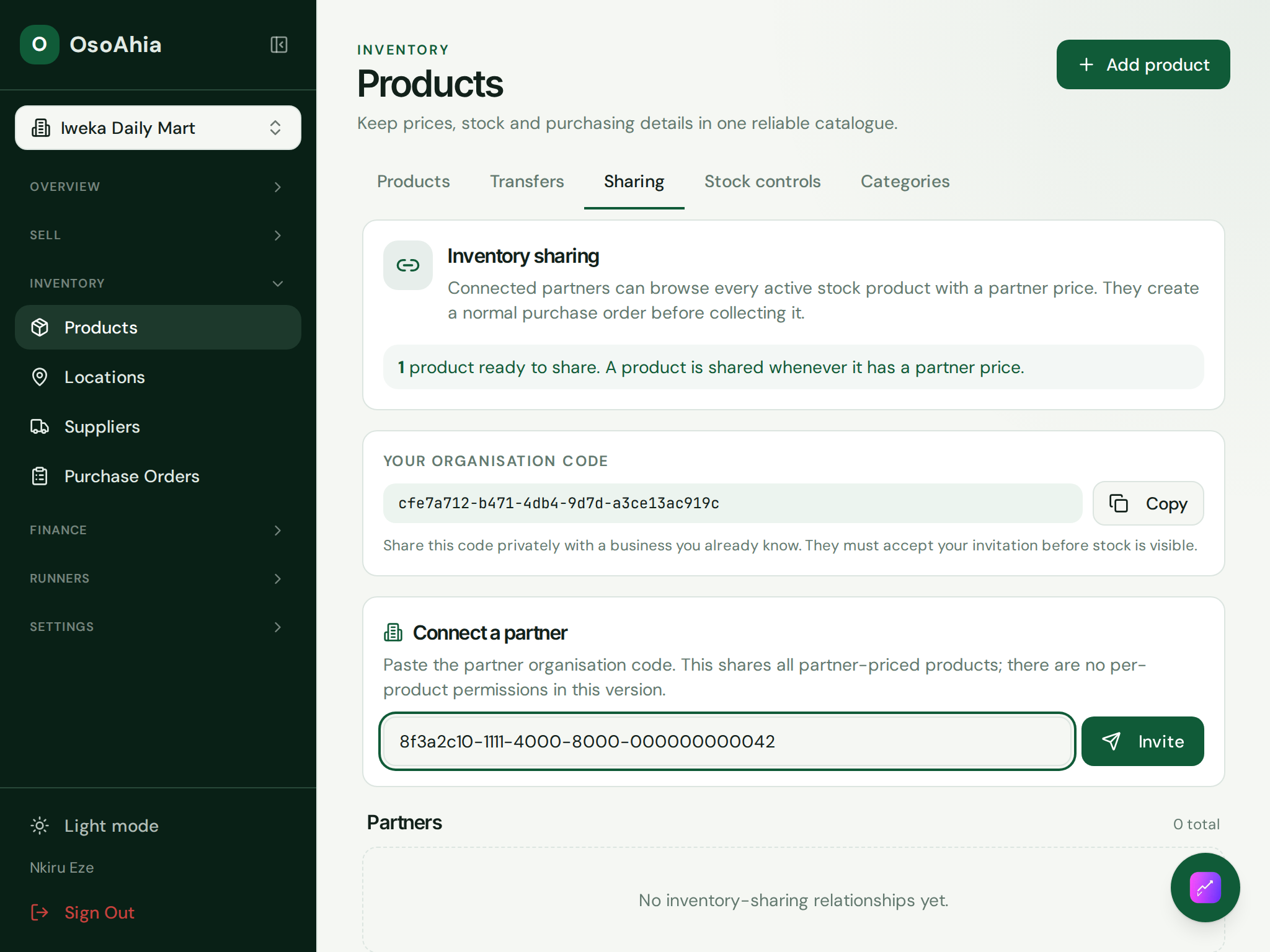
Paste the other shop’s organisation code. Press Invite. This version shares every partner-priced item. There is no per-product permission list. After they accept, they raise a purchase order and collect. That PO is the sale, not the invite.
What done looks like
- The product list shows a partner price on items you intend to share.
- Your organisation code is visible so the partner can invite you back.
- An invitation shows as Invitation sent until the partner accepts.
- After they accept, they browse partner-priced items and raise a purchase order.
Common mistakes
- A partner price is what makes an item visible. Retail price alone does not share it.
- Do not post the organisation code in a public chat. Send it to the person you already trade with.
- Accepting a share is not a sale. They still raise a purchase order before they collect.